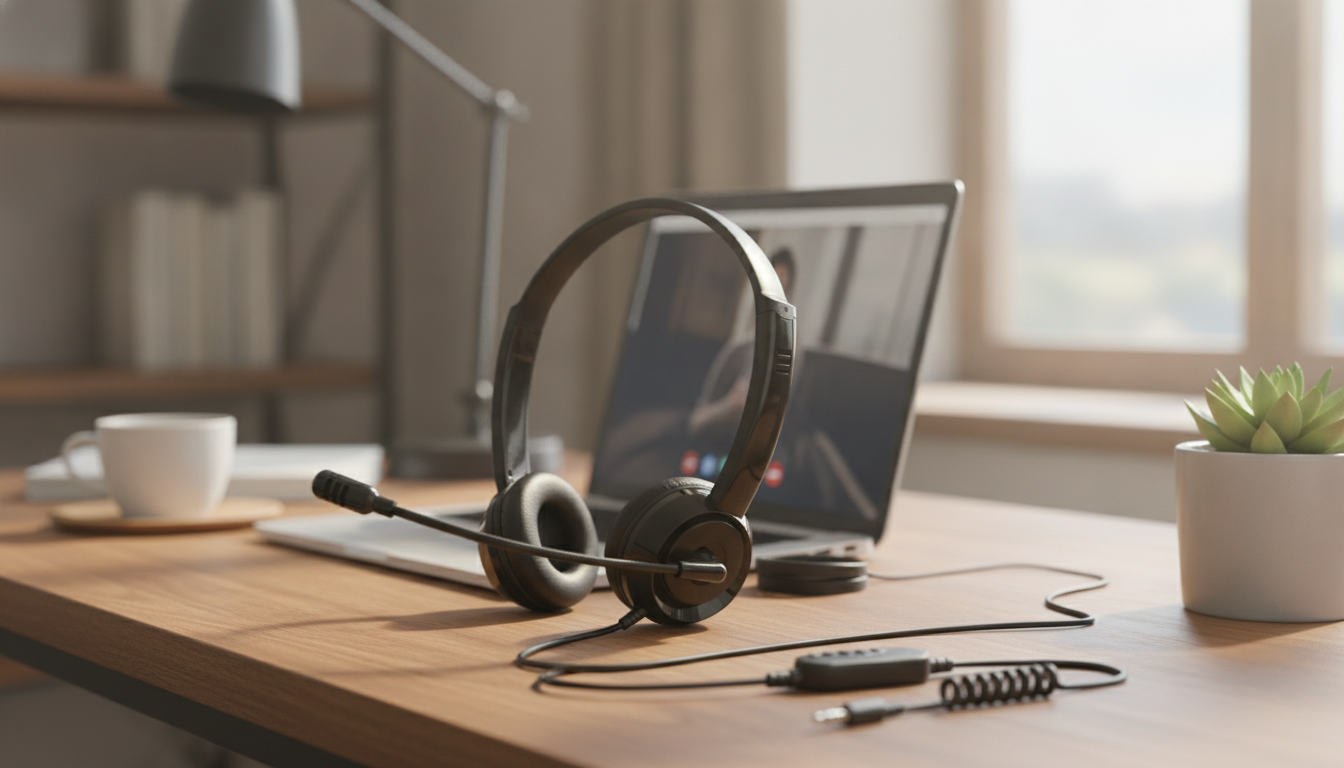
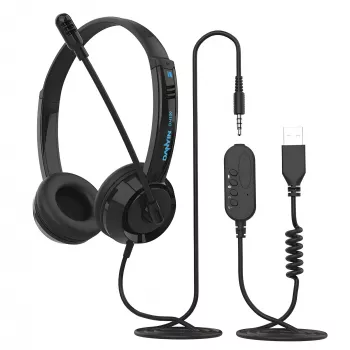
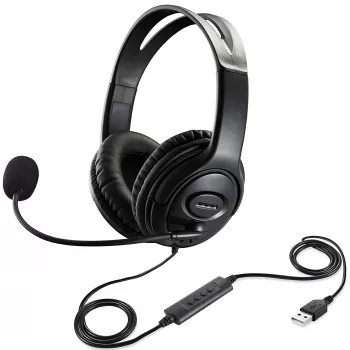
A wired headset can remove guesswork from online meetings, remote classes, and voice chats—especially when it offers both USB and 3.5mm options. With a dual-connection headset, it’s easier to move between a laptop for work, a phone for quick calls, and a controller for gaming chat without juggling separate audio gear. Below is a practical guide to what a USB & 3.5mm wired headset with microphone can do, how to set it up across common devices, and what to check to keep voices clear and comfortable during longer sessions.
Having both USB and a 3.5mm plug covers the two most common “everyday audio” worlds: modern computers and headphone-jack devices. It also keeps things simple when you’re moving between rooms, devices, or roles (work, class, and downtime).
Most “mic not working” problems are simple routing issues: the headset is connected, but the device or app is still listening to the built-in microphone. A quick check in system audio settings and inside your calling app usually resolves it.
| Device | Best connection | What to confirm | Common fix if mic doesn’t work |
|---|---|---|---|
| Windows PC | USB | Sound settings: Input/Output set to headset | App input device set to headset; allow mic permission |
| Mac | USB | System Settings > Sound: choose headset | Grant mic access to the app in Privacy settings |
| Game controller | 3.5mm | Controller/headset audio enabled | Replug; adjust mic monitoring or chat mix settings |
| Phone/Tablet | 3.5mm | Adapter compatibility (if needed) | Try another adapter; ensure TRRS mic support |
For deeper device-specific permission checks, these official resources can help: Microsoft Support: Fix microphone problems in Windows and Apple Support: Control access to the microphone on Mac.
A headset mic can sound significantly better with small adjustments. The goal is consistent volume and clean speech—especially if you’re switching between lecture-style listening and active discussion.
Comfort becomes the deciding factor when a headset is used daily—especially for class schedules, customer calls, or back-to-back meetings. The best sound in the world won’t matter if the fit causes pressure points after an hour.
Wired headsets tend to shine where timing and clarity matter most: conversation, lectures, and real-time coordination. They’re generally designed to keep voices forward and understandable.
It depends on the device and port. USB connections typically carry both headphone audio and microphone input, while 3.5mm requires a headset-compatible jack (TRRS) or a proper adapter that supports the microphone.
This is usually an input selection or permission issue. Confirm the headset is selected as the microphone in your OS and inside the app, check microphone permissions, verify any inline mute control is off, and try a different port or a TRRS-compatible adapter if you’re using 3.5mm.
USB is often easier on computers because it shows up as a distinct device and can provide stable digital audio. 3.5mm can be more broadly compatible across phones, tablets, and controllers, but results vary depending on the device’s analog audio hardware and adapter quality.








Leave a comment